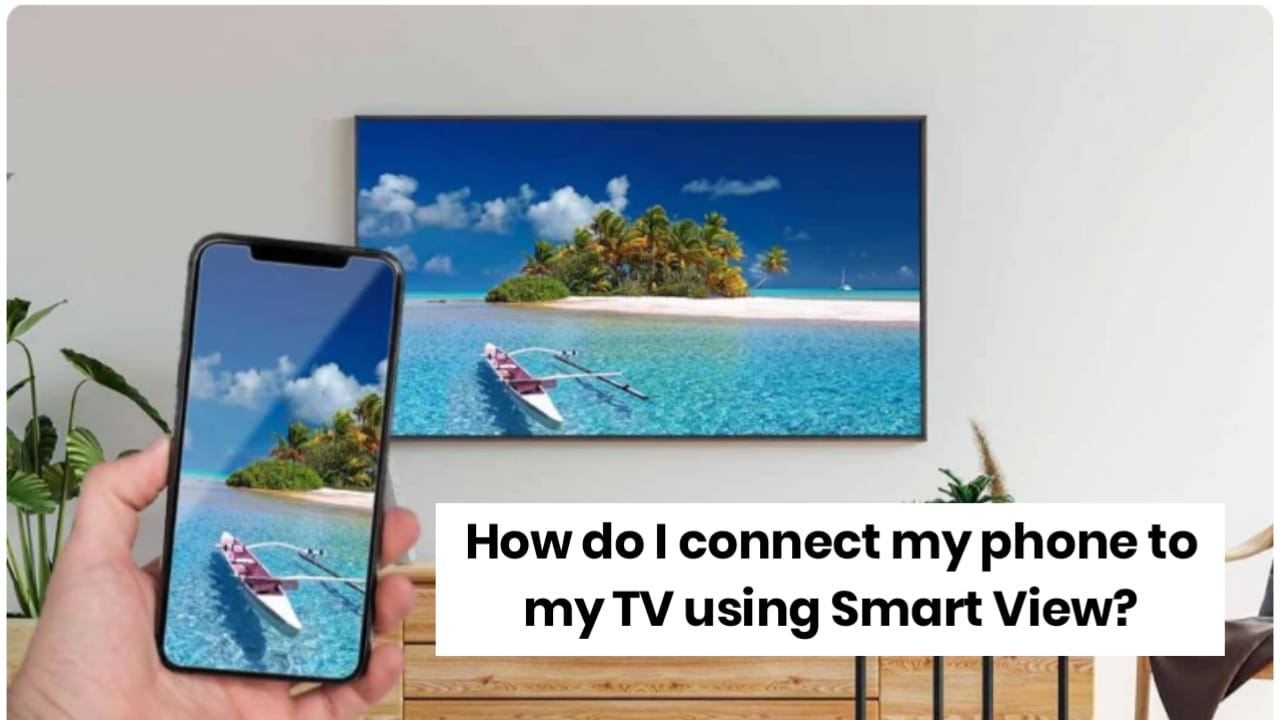
How to Connect Your Mobile to a TV Using Smart View? – The Easiest Way to View Your Smartphone Screen on a TV
Friends, in today’s world, we all love watching movies, playing games, and viewing photos on our mobile phones. However, the enjoyment derived from a large screen specifically a TV simply cannot be matched by a small mobile device! If you own a Smart TV, you can connect your phone to it wirelessly (without any cables) using the Smart View feature.
In today’s article, we will explore in detail what Smart View is and how to connect your mobile to a TV using Smart View. If you, too, wish to ‘mirror’ your mobile screen onto your TV, be sure to read this step-by-step guide in its entirety.
What is Smart View?
Smart View is primarily an in-built feature found in Samsung smartphones. It operates based on “Screen Mirroring” technology. With its help, you can view your mobile’s entire interface—including videos, games, and apps—directly on your Smart TV.
On phones from other manufacturers, this feature is also known by names such as Cast, Screen Mirroring, Wireless Display, or Multi-screen.
Pre-requisites Before Connecting
Before initiating the connection process, please ensure you keep these two points in mind:
1. Wi-Fi Connection: Both your smartphone and your Smart TV must be connected to the same Wi-Fi network.
2. Smart TV: Your TV must support ‘Miracast’ or ‘Screen Mirroring’ technology.
How to Connect Your Mobile to a TV Using Smart View? (Step-by-Step)
Here are some simple steps that will help you connect your mobile phone to your TV:
Step 1: Open the Quick Panel
First, swipe downwards from the top of your smartphone’s screen to open the Quick Settings/Panel. Step 2. Locate the Smart View Icon
Here, you will see various icons (such as Wi-Fi, Bluetooth). Tap on the Smart View icon among them. (If you do not see it, swipe sideways or tap the ‘Edit’ button to add it).
Step 3. Select Your TV
As soon as you enable Smart View, your phone will scan for available TV devices nearby. Once your TV’s name appears on the screen, tap on it.
Step 4. Grant Permission (Start Now)
A pop-up will now appear on your mobile screen asking, “Start Mirroring with Smart View?” Tap ‘Start Now’ here.
Step 5. Allow on the TV
When connecting for the first time, a message may appear on your TV screen; use your remote to select and press the ‘Allow’ or ‘Accept’ button.
What to Do If Smart View Isn’t Working? (Troubleshooting)
Occasionally, your mobile device may fail to connect to the TV; in such cases, you can try the following methods:
Check Wi-Fi: Ensure that both your phone and TV are connected to the same router.
Restart Devices: Try turning both your phone and TV off and then back on (Restart).
TV Software Update: Check to see if your Smart TV’s software is up to date.
Power Saving Mode: If your phone’s battery is low and ‘Power Saving Mode’ is enabled, Smart View may not function correctly. Turn this mode off.
Key Features and Benefits of Smart View
Feature | Benefit
Aspect Ratio | You can adjust the mobile display view (Full Screen) to fit your TV screen perfectly.
App Casting | You can cast a specific video or photo to the TV while simultaneously using your mobile device for other tasks.
No Lagging | High-quality videos stream without any interruptions on a good Wi-Fi connection.
Conclusion
Friends, Smart View is a truly amazing feature that takes your entertainment experience to a whole new level. Whether you want to relive old memories (photos) with your family or enjoy gaming on a large screen, this method is the absolute best.
We hope that, with the help of this article, you have successfully connected your mobile phone to your TV. If you encounter any difficulties during the connection process, please let us know your mobile model and TV name in the comments section; we will be happy to assist you fully.
If you enjoyed this post, please make sure to share it with your friends!